- Open up Zoom Workspace app
- Click on the Workspaces tab and then select the date, time, and office that you need to reserve a seat in
- Select a desk with the following icon indicating an open hot desk seat in the office
- Click on the available hot desk seat and click Reserve for myself
- Once reserved successfully, you will receive a slack notification from Zoom for your reservation
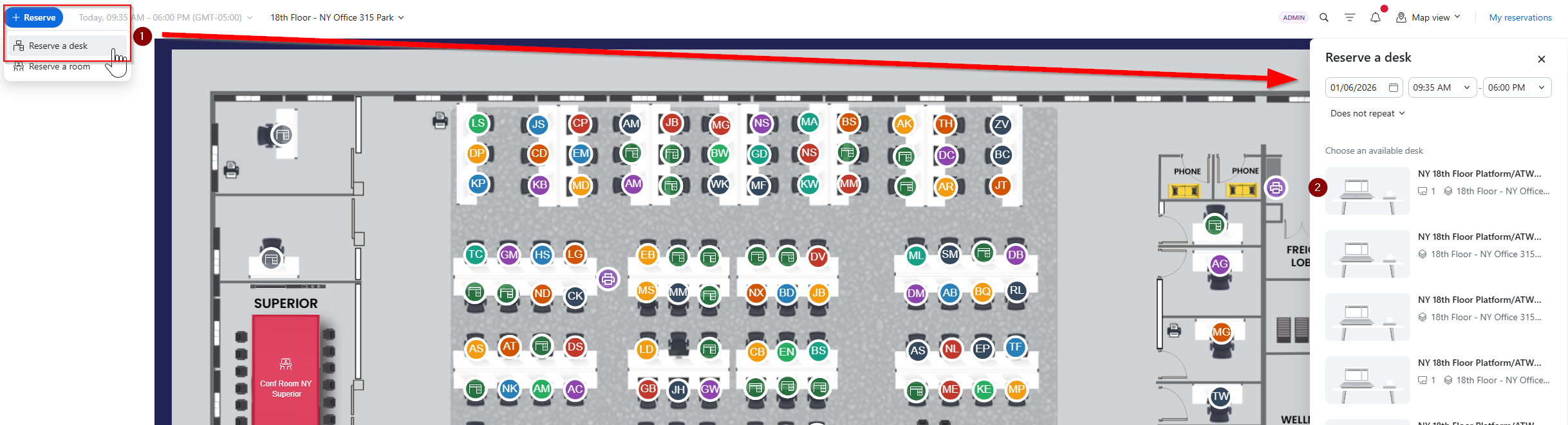
You can also click "Reserve" in the top left to see available HotDesks for your day to reserve:
Multi Day Booking:
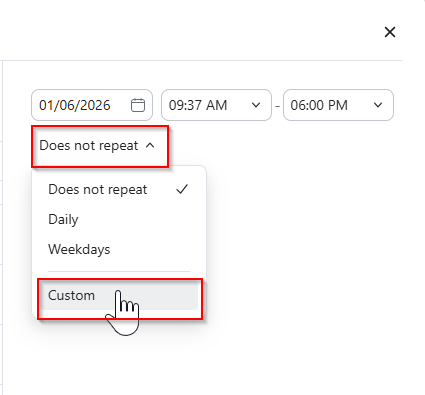
Click "Does not Repeat" then "Custom" when you click a hotdesk, there you can specify a multi day Booking:
Click on the reserved seat and you will have an option to get directions to your reserved seat in that office
- Once the reservation is confirmed on Zoom workspace, please submit a Zendesk ticket to notify the onsite IT team about your desk reservation